Connecting with Wrike
If you use Wrike as a project management tool, you can easily integrate it with Everhour and start tracking time for all your Wr tasks. No more tab switching.
In this article
How to setup
Important. To see the embedded timer in your Wrike and track time there, you need to install our browser extension. This is how we embed controls into their interface. The extension must be up-to-date and installed on any computer you use.
- 1
-
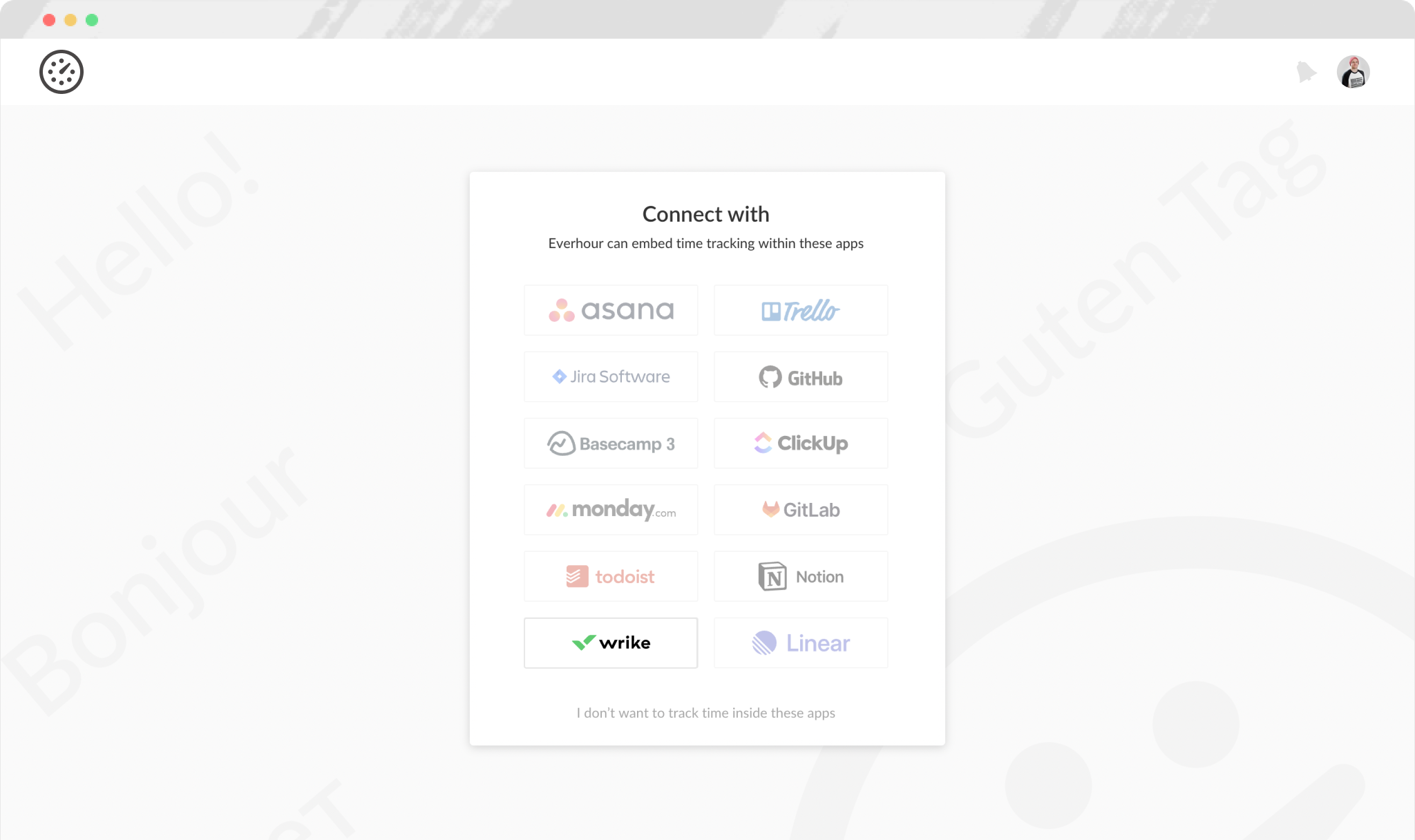
You'll be prompted to connect during signup. To do this, you need to hit 'Wrike' button and let Everhour do the rest, step-by-step.
- 2
-
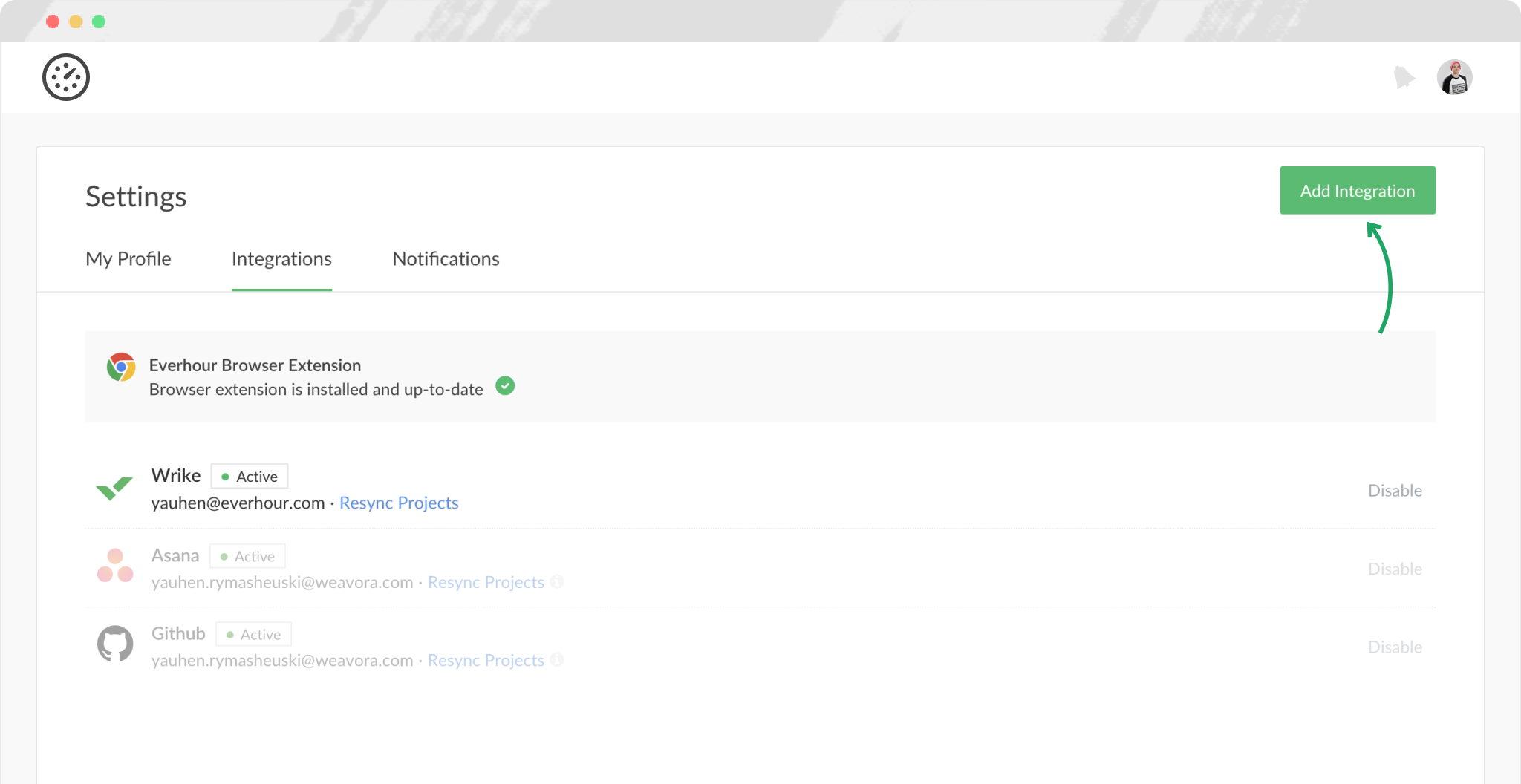
You can connect Wrike or any other platform at any time from the Integrations page in your account settings.
- 3
-
You need to invite your team to join Everhour. During the registration process, they will need to connect their Wrike accounts and install our browser extension. I.e. only those you invite into Everhour will be able to track time and see time progress. These are not necessarily all Wrike users. Same way your clients will not see anything in Wrike unless you add them to your Everhour team.
Tip: Click on the extension icon in Chrome, and then on the pin icon next to Everhour to make it visible all the time.

- 4
-
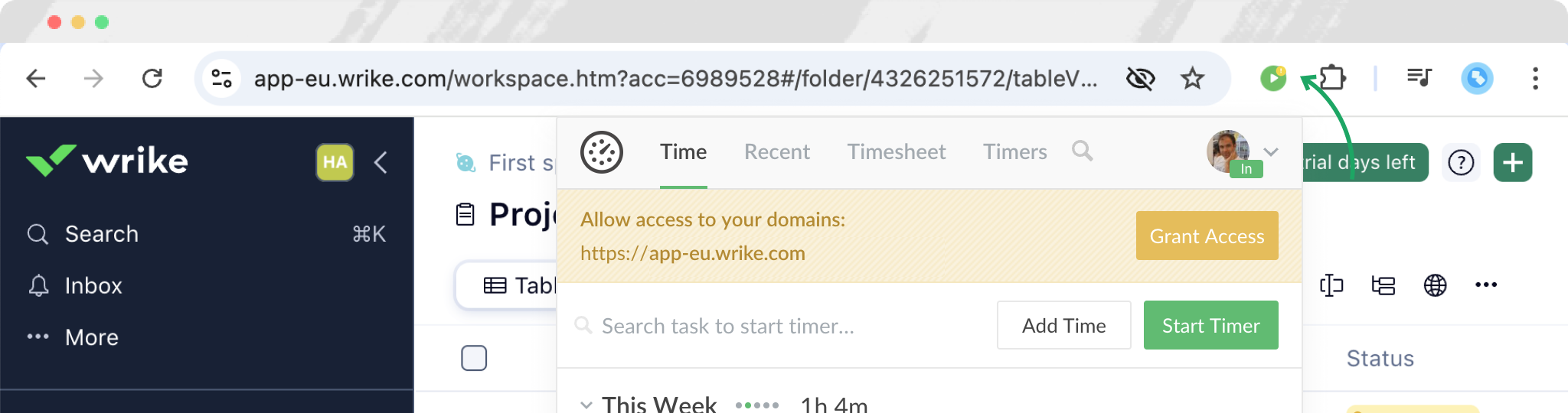
You will need to grant access to our extension after it is installed. Click on its icon in the toolbar > Grant Access. Otherwise we won't be able to embed time tracking controls inside Wrike interface.

How sync works
- When you connect Wrike, Everhour will automatically sync all your spaces and projects across spaces. Folders do not sync. It's currently not possible to make a granular sync, deciding what projects you wish to connect and what not.
- We sync spaces in order to ensure that tasks, created without any project, have one. If you have none of such tasks, spaces will still sync as projects, but will be empty.
- Sync happens periodically and automatically so all new projects that you create in Wrike will be added to your Everhour account after some time. You can manually resync them at any time. Everhour also automatically updates the names of tasks or projects/spaces if they were renamed in Wrike. This way Everhour reports will always show the freshest data.
- Any admin in Everhour will see any project from Wrike as soon as it has time reported or budget configured in Everhour. This is important in order to make sure that all Everhour admins see the same metrics in reports. But even if that is the case, an admin, who does not have access to the project in Wrike and still see the project in Everhour due to mentioned premises, will see just very limited information. There are project title, a task title, who tracked time and that's basically it. We do not sync attachments, comments, or task description from Wrike in any case. Regular employees will only see projects and tasks that they has access to in Wrike. If access to the project is denied or changed in Wrike, it will also happen on Everhour side.
- Everhour does not integrate with the native Wrike time tracker.
How to trigger instant sync:
- 1
-
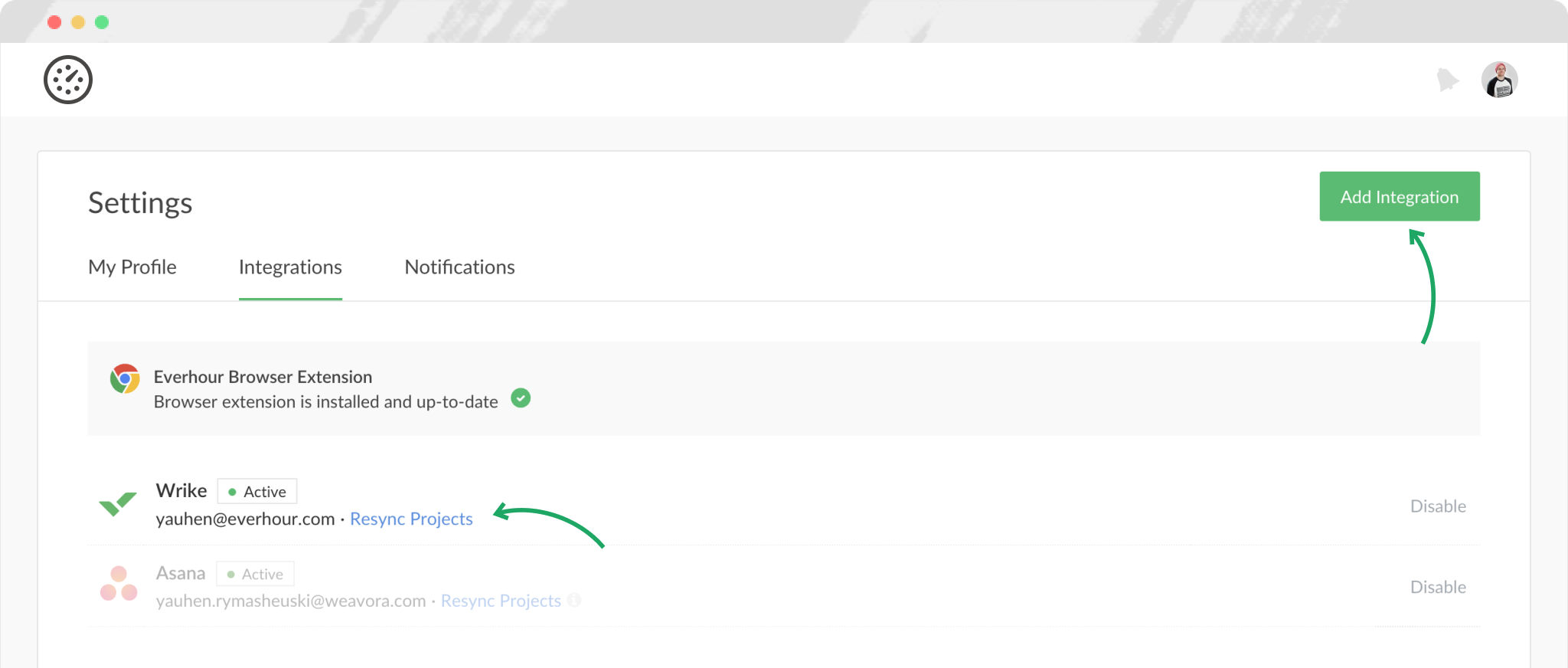
If you just added a new project in Wrike or renamed the existing one and want to see these changes immediately in Everhour, you need to resync projects from the Integrations page manually.
- 2
-
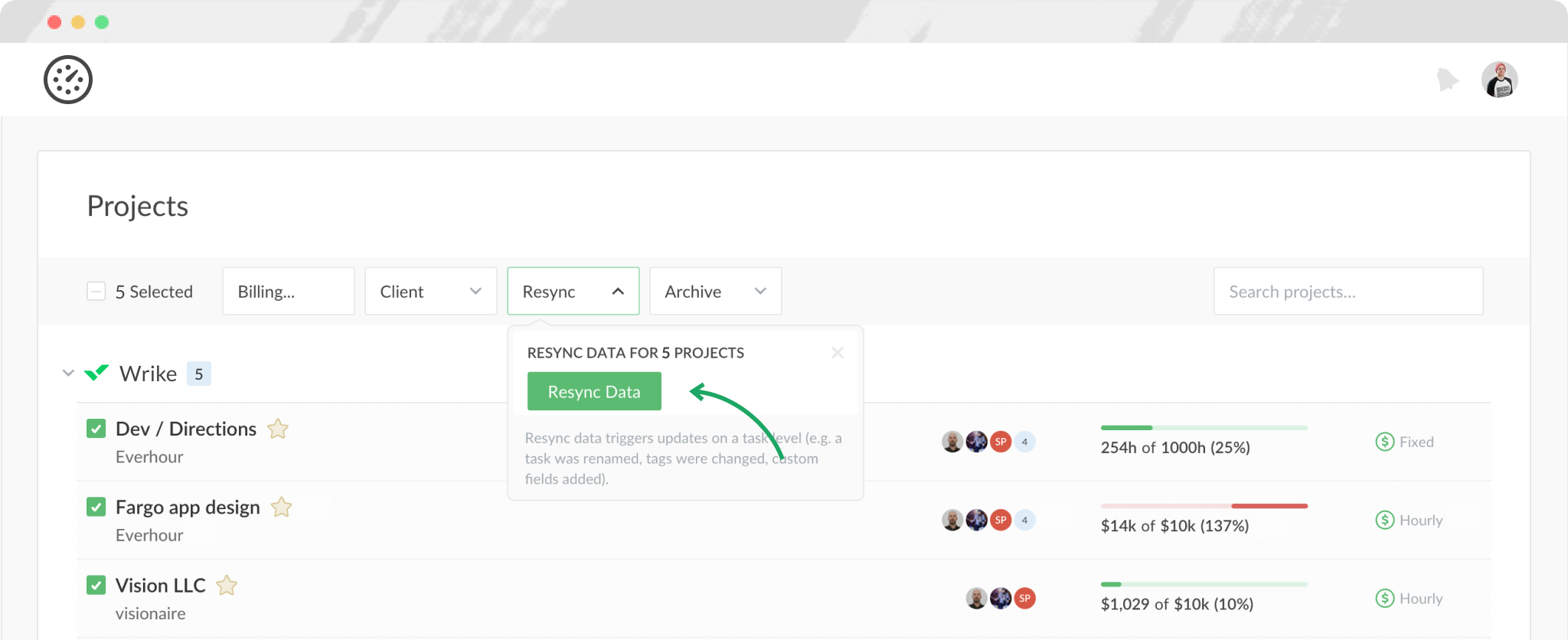
Same with tasks. If you've just renamed a task, added a new tag or moved the task into a different section and you want to see these changes instantly, you need to go to the Projects page, select the project(-s) with a change and hit 'Resync Tasks'.
Controls inside Wrike
After successful integration, Everhour supplements Wrike interface with a number of features.
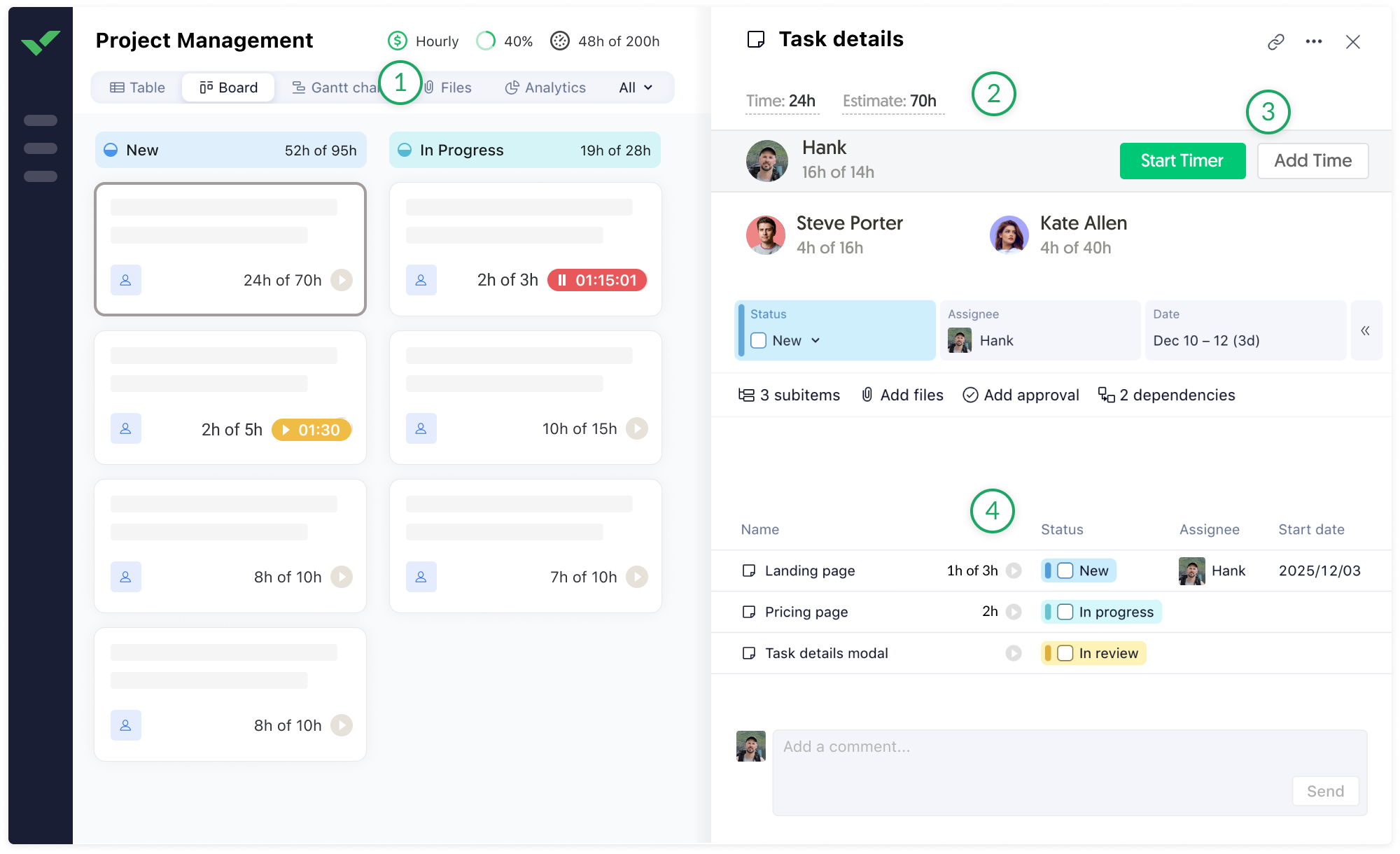
- Header: configure any project as billable, set up project budget, see total project hours and estimate. By default, only admins can see the budget. You can enable showing budget to everyone. Regular members don't see anything money-related in Everhour;
- Task time: total time reported by each employee and estimate into the task. Click on the badge to make changes.
- Buttons: you can track time using the timer or log time manually.
- Subtasks: you can track time and watch progress by any subtask.
Making reports with Wrike data
There are a number of columns that shows specific data coming from Wrike. Open a report builder and select any of columns to display the data in your report.
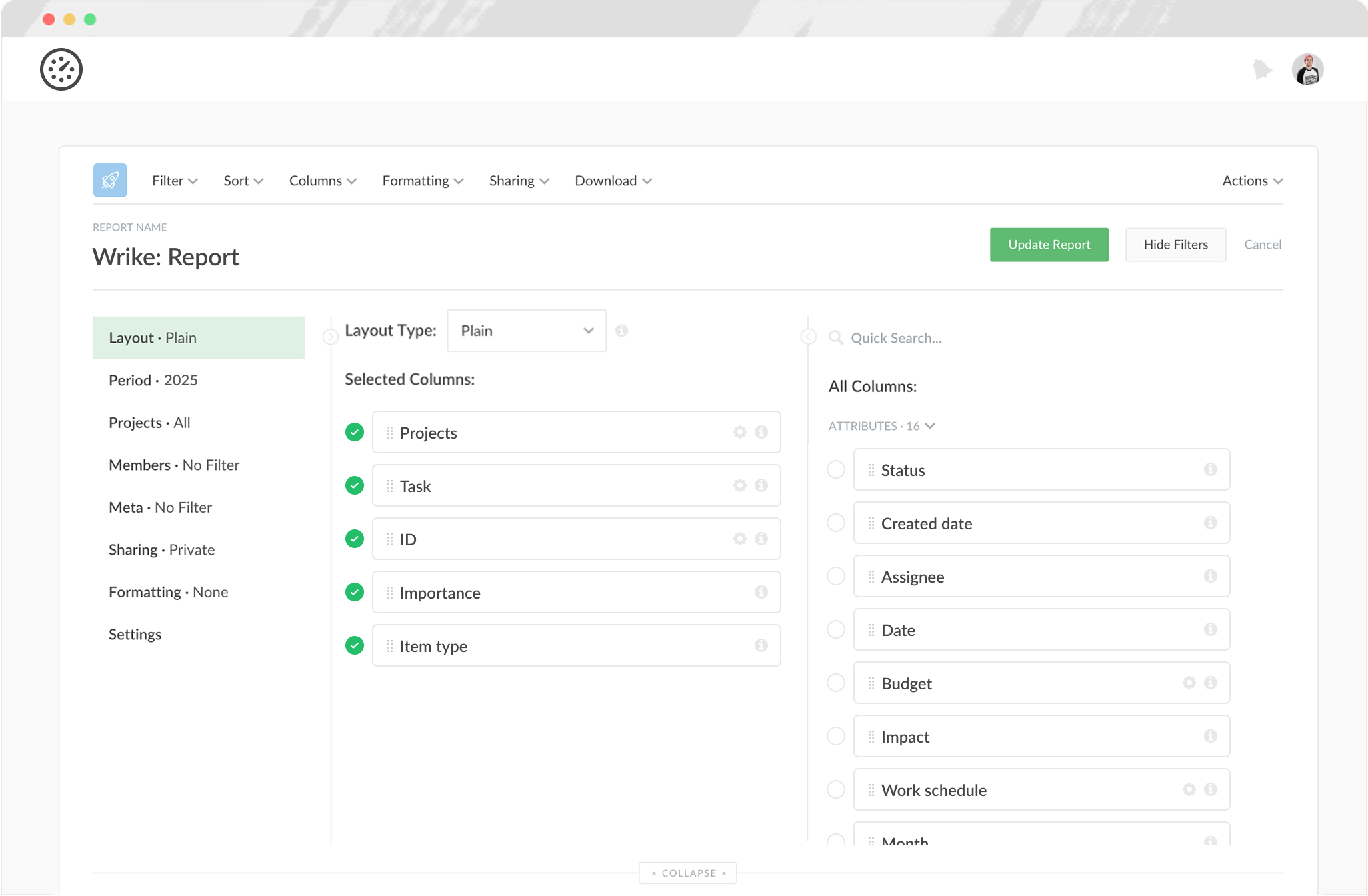
- Project and task accordingly show the names of Wrike projects/spaces and tasks;
- Parent task column that can group your subtasks under the parent name;
- Some custom fields (Priority) can be synced as column to Everhour for reporting
- Task number and Task status shows the task ID and whether it is active/closed.
Permissions
In general, we rely on Wrike's permissions a lot. If in Wrike the user has access to the task project, therefore, he can track the time in it. If you take away someone's access to the project in Wrike, this user will no longer be able to track time into its tasks. Past history will remain in the reports of the team, but the user will lose it.
Configuring budgets, marking a task as non-billable, assigning a client to the project can only be done by admins. The admin in Everhour can see projects and tasks of all members (except the so-called 'Personal Projects'). It does not matter if an admin has access to the same project in Wrike. This is due to the fact that any admin should see the same totals in time reports and be able to configure projects billing and budgeting.
Regular users cannot track time into the archived project. Admins can do that, but only manually (timer is disabled). Thus, we indicate that the project is archived and make sure that no one tracks time accidentally.
Troubleshooting
It may happen that Wrike changes something in their code and these changes break some part of our functionality. We always do our best to apply the necessary corrections ASAP, but this requires updating our browser extension (this is how we embed into Wrike interface and there is no other mechanism). If you encounter an issue that something has stopped working, please make sure that you have the latest version of the extension installed. Read this article for more details.

If suddenly the review of our extension is delayed by Google team, as a temporary workaround, you can install the dev version of our extension. Read this article for more details.
Disconnecting
To disable integration, go to 'Integrations' page in Everhour account.
This option affects only your account, other team members are still able to track time. If the whole team disconnects Wrike, no one can track new time in Wrike, time history remains only in admin reports.
To remove all Everhour controls from Wrike interface, delete our browser extension.