Importing data from CSV
Moving to Everhour from another time tracker? Upload a CSV export from Harvest, Toggl, Clockify, Kimai or your own spreadsheet, and Everhour brings in your time entries, timecards, people, clients, projects and tasks.
In this article
Before you start
Only admins can import data. You can start an import in two places:
- Settings > Import/Export, then click Import data.
- The Connect with step of the account setup: pick the CSV tile.


Your file should meet these requirements:
- It is a
.csvfile of up to 15 MB. Excel files are not accepted, so save them as CSV first. - The first row holds the column names.
- Values are separated by commas, semicolons or tabs. Everhour detects the separator on its own.
- It is saved in UTF-8. Other encodings work too, but accents and non-Latin letters may come out wrong.
Important. An import can't be cancelled or undone once it starts. Importing the same file twice adds its time entries twice. People who are new to your team take paid seats.
Importing a file
- 1
-
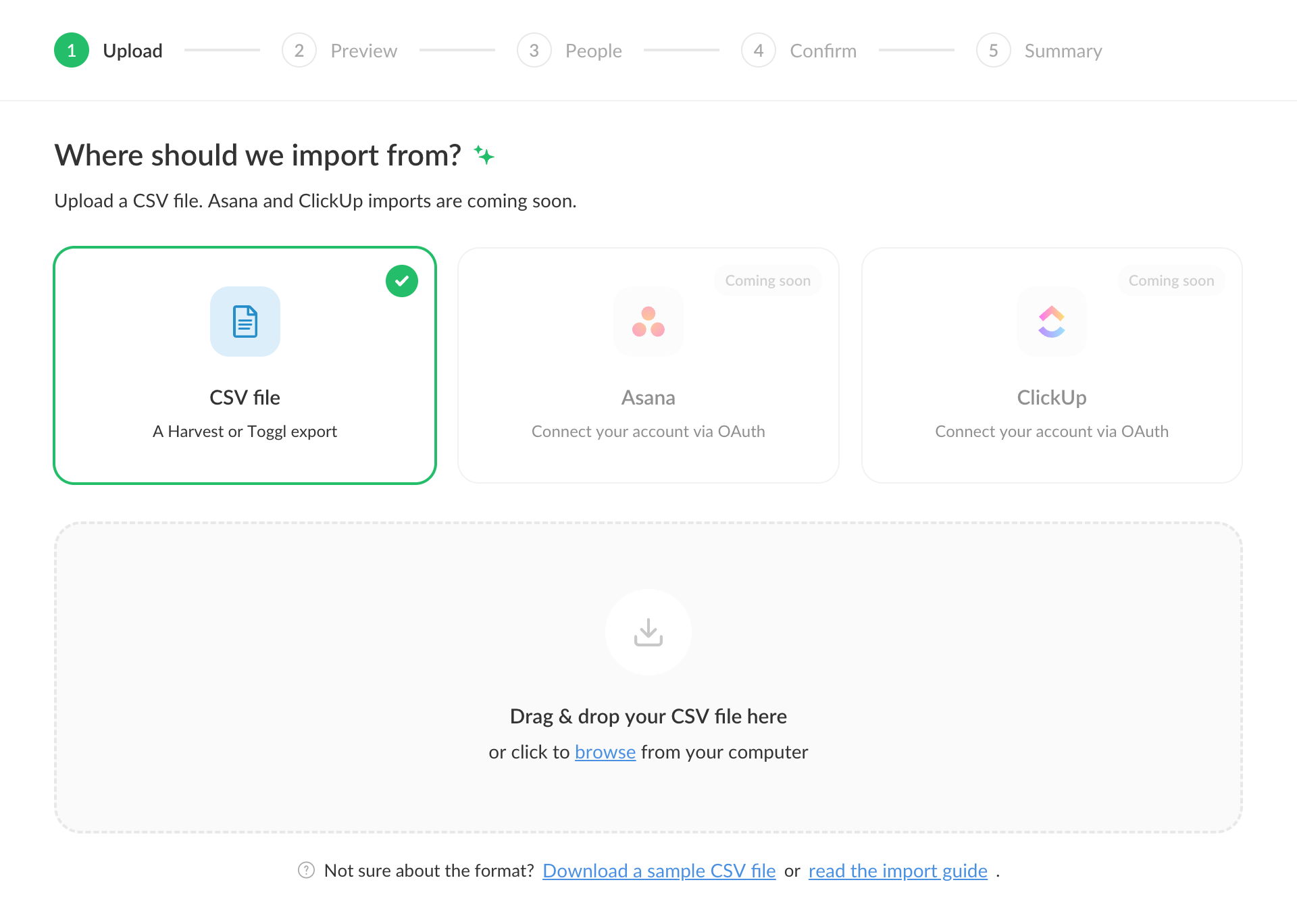
Upload the file. Click Import data, then drag your CSV file into the window or click browse to pick it from your computer. Not sure what the file should look like? Click Download a sample CSV file to get an example.
- 2
-
Check the preview. Everhour reads the column names and shows what each column will become in Everhour. Nothing is imported yet.
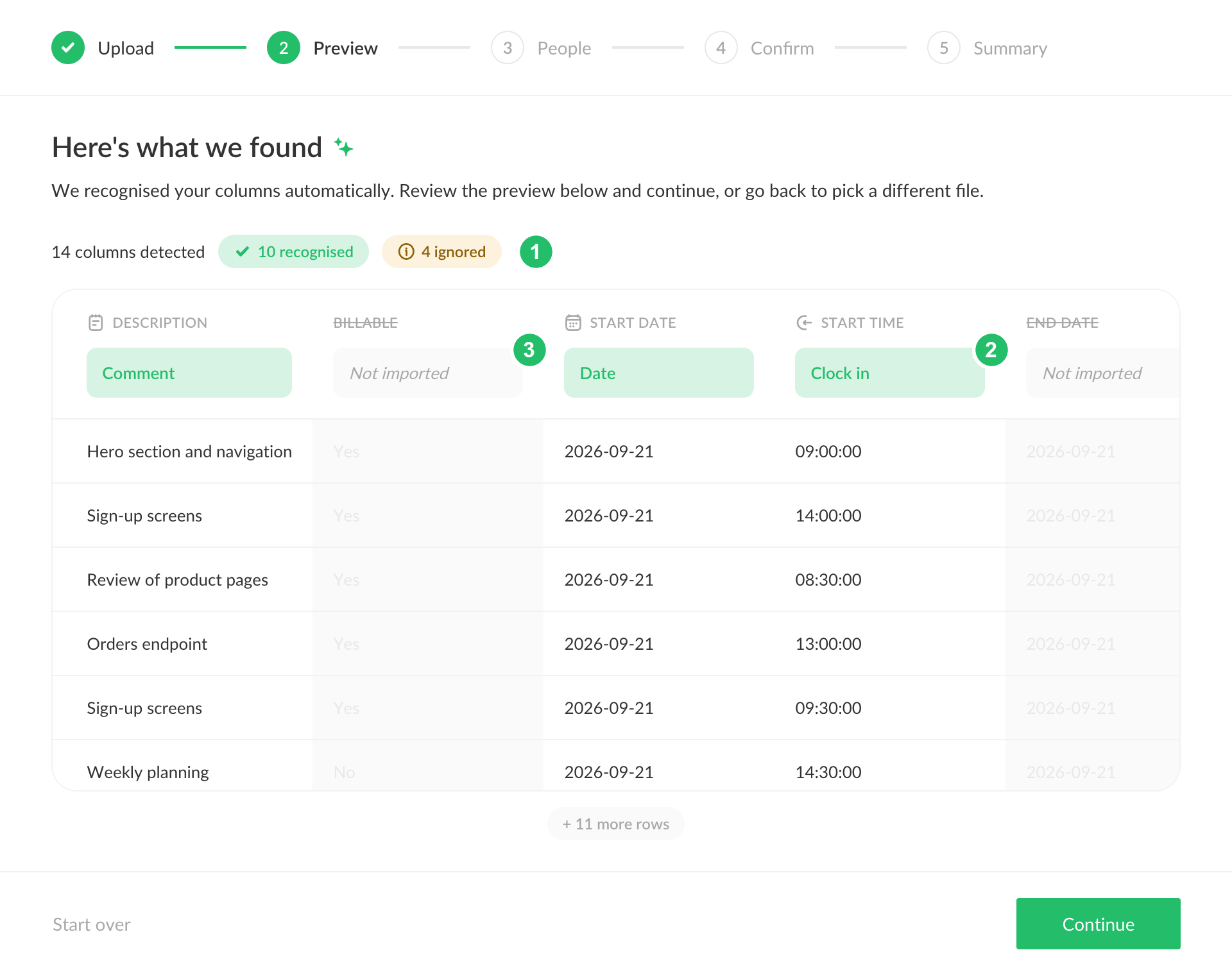
- The number of columns Everhour found, recognized and ignored.
- What the column becomes in Everhour, for example Project or Clock in.
- Not imported marks a column Everhour doesn't recognize. Its data is skipped.
The table shows the first 50 rows of the file. If a column you need is marked Not imported, rename it in the file (see Columns Everhour recognizes), click Start over and upload it again. Otherwise click Continue.
- 3
-
Review your team. You see everyone found in the file and how many entries each person has. Uncheck anyone you don't want to import: their rows are skipped.
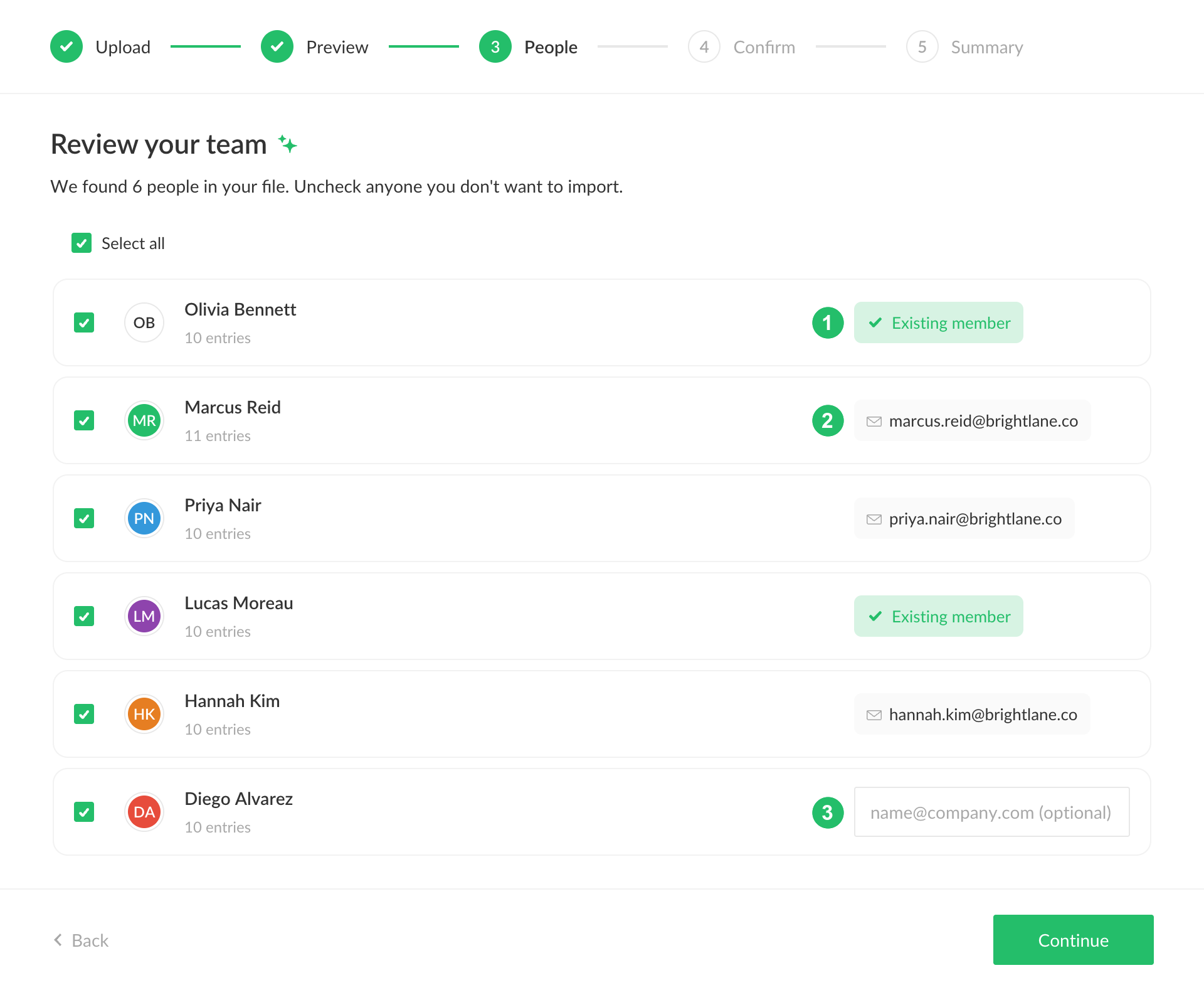
- Existing member: this person is already on your team, so their time goes to them.
- A new person with an email from the file. They join your team with this email.
- A new person without an email. Type one in if you like, or leave it empty and add it later on the Members page.
If the file has no name or email column, every entry is assigned to you.
- 4
-
Confirm. Everhour sums up what is about to happen: how many time entries and timecards it will create, how many people join the team and how many are matched to existing members. The numbers are estimates, since rows without a date or time are skipped later. The timecard count is the number of rows, so expect fewer in the end, one per person per day. Read the Before you start list and click Start import.
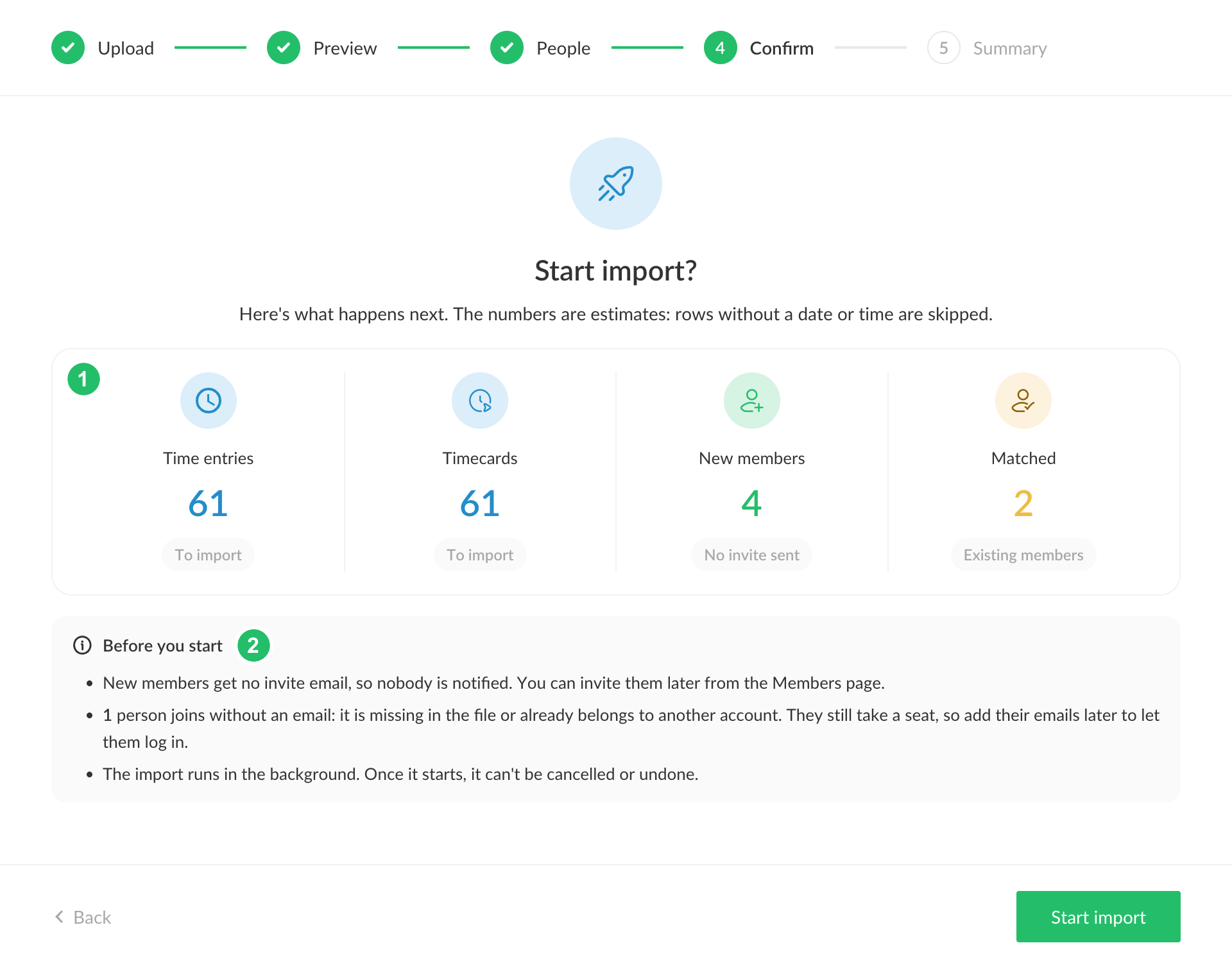
- What the import will create.
- Things to know before you start, such as new members getting no invite email.
- 5
-
Wait for the summary. The import runs in the background, so you can close the window and come back later. When it is done, you see what was created and which rows were skipped. Click Go to time entries to see the imported time.
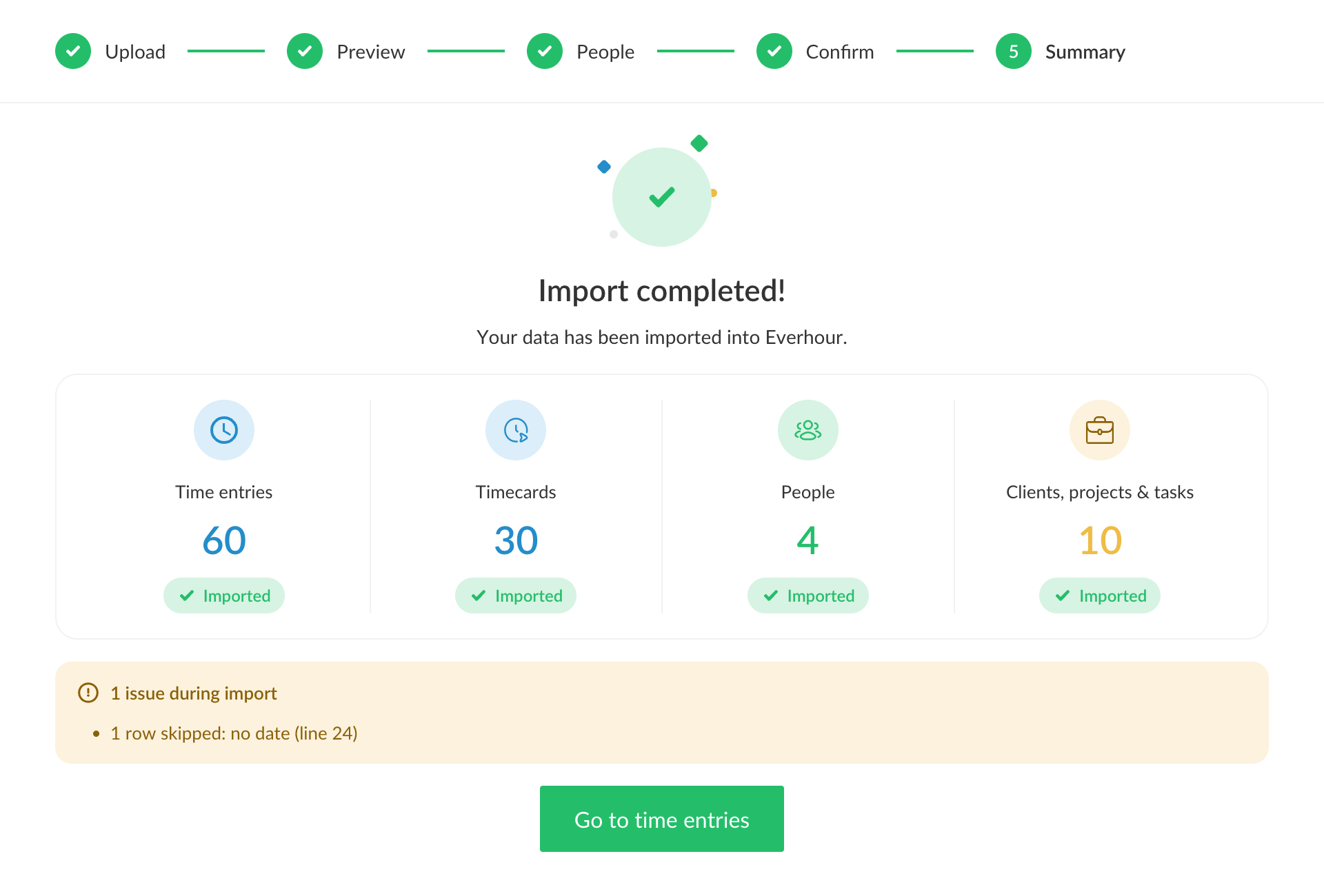
If you close the window before the import is done, go back to Settings > Import/Export. The button there shows the state of your last import: View progress while it runs, View details if it failed, and Resume import if you left it before the start.

Columns Everhour recognizes
Everhour finds columns by their names, so your file needs to use one of the names below. Case, spaces and punctuation don't matter, so E-mail, e mail and EMAIL are the same column. Otherwise the name must match in full: a column called just Start or Time is not recognized. Column order doesn't matter.
You don't need to delete other columns: Everhour marks them Not imported and skips them.
People
| Everhour field | Column names | Example |
|---|---|---|
| Name | Name, Full name, User, Member, First name, Middle name, Last name | Olivia Bennett |
| Email, E-mail, Email address | olivia@brightlane.co | |
| Role | Role, Roles, Job title, Position | Design Lead |
Clients, projects and tasks
| Everhour field | Column names | Example |
|---|---|---|
| Client | Client, Client name, Customer | Northwind Traders |
| Project | Project, Project name | Website Redesign |
| Task | Task, Task name, Activity | Homepage layout |
Time entries
| Everhour field | Column names | Example |
|---|---|---|
| Date | Date, Start date, Spent date, Work date, StartDate | 2026-09-21 |
| Time | Hours, Duration, Hours worked, Time spent, Hrs, Logged time, Logged hours, Duration (h), Duration (decimal) | 2:30 |
| Comment | Notes, Note, Description, Comment, Comments, Info | Hero section and navigation |
Timecards
| Everhour field | Column names | Example |
|---|---|---|
| Clock in and out, one column | Start and stop time, Start/End, Clock in/Clock out | 09:30 - 11:30 |
| Clock in | Start time, Started at, StartTime, From | 09:30 |
| Clock out | End time, Stop time, Ended at, EndTime, To | 11:30 |
Long values are cut to fit: up to 120 characters for a name, 50 for a role, 100 for a client, 150 for a project and 1,000 for a task or a comment. An email longer than 100 characters is ignored.
These columns are never imported: billable flags, rates and amounts, tags, groups and teams, and end dates.
How columns work together
Some data needs more than one column:
- Time entries need a date and a time column.
- Timecards need a date and a clock-in, either on its own or together with the clock-out in one column.
- Projects need a project column. Tasks need a task and a project column, and clients need a client and a project column.
- People need a name or an email column. A file with people only adds them to your team and imports no time.
One row can feed both a time entry and a timecard. For example, a Toggl export with Start and stop time and Logged time gives you both.
A name can be split into several columns. Everhour joins First name, Middle name and Last name in the order they appear in the file.
If two columns mean the same field, Everhour takes the first one that has a value. A Clockify export, for example, has both Duration (h) and Duration (decimal), and Everhour reads Duration (h).
Exports from other tools
Detailed time reports exported as CSV from these tools are recognized as they are, with no renaming:
| Tool | Columns Everhour imports | Columns Everhour skips |
|---|---|---|
| Harvest | Date, Client, Project, Task, First name, Last name, Email, Role, Hours, Notes | Team, Billable, Hourly rate, Cost rate, Billable amount, Cost amount |
| Toggl Track | Member, Email, Client, Project, Task, Description, Date, Start and stop time, Logged time | Billable, Amount, Tags |
| Toggl Track (older format) | User, Email, Client, Project, Task, Description, Start date, Start time, End time, Duration | Billable, End date, Tags, Amount |
| Clockify | Project, Client, Description, Task, User, Email, Start Date, Start Time, End Time, Duration (h) | Group, Tags, Billable, End Date |
| Kimai | Date, From, To, Duration | Other columns, depending on your export settings |
If your tool is not on the list, rename the columns in your file to match the names above.
Date, duration and time formats
Dates
| Format | Example |
|---|---|
| Year-month-day | 2026-09-21 |
| Day.month.year | 21.09.2026 |
| With slashes | 09/21/2026 or 21/09/2026 |
| With month names | 21 Sep 2026, September 21, 2026 |
Two-digit years work too. Dates with dots are always read as day, month, year.
Dates with slashes are read in one order for the whole file. If any date shows the order, like 21/09/2026 (there is no month 21), Everhour uses it for every row. If no date shows it, Everhour picks the order that keeps the dates closest together, and month first if that doesn't help either.
Durations
| Format | Example |
|---|---|
| Decimal hours | 2, 1.5, 1,5 |
| Hours and minutes | 2:30, 01:30:00 |
| With units | 1h 20m, 45m, 1.5h, 1h 20m 30s |
Words like 1 hour and zero durations are not recognized, and such rows are skipped.
Clock-in and clock-out times
| Format | Example |
|---|---|
| 24-hour time | 9:30, 09:30:45 |
| 12-hour time | 9:00am, 7:47:10 AM |
| Date and time | 2026-09-21 09:00:00, 2026-09-21T09:00:00Z |
| Range in one column | 09:30 - 11:30, 9:00-10:00 |
Times are imported exactly as written in the file, with no time zone conversion. Seconds are dropped.
How people are matched
For each person in the file, Everhour looks for a member of your team, first by email and then by name. Emails and names are compared regardless of case.
If no one is found, the person joins your team as a new member:
- With an email: they are added with that email, but no invite is sent, so nobody is notified. Invite them later from the Members page.
- Without an email: they are added without one. They can't log in until you add their email on the Members page.
- With an email that belongs to an account in another team: the email is ignored, and the person is added without an email.
New members are added with the Member role and get access to all public projects.
If the same person appears in some rows with an email and in others without one, Everhour treats them as one person.
How clients, projects and tasks are matched
Everhour reuses what you already have and creates only what is missing. Names are compared regardless of case.
- Clients are matched by name among your active clients.
- Projects are matched by name and client among the projects created in Everhour, archived ones included. Projects from integrations such as Asana or Jira are not matched. The same project name under two different clients becomes two projects. New projects are created as public.
- Tasks are matched by name within their project.
Time is linked to a project through its task. A row with a project but no task still creates the project, but its time is saved without a task, and so without a project. The same goes for a row with no project at all.
Timecards
When the file has clock-in and clock-out times, Everhour builds one timecard per person per day:
- The earliest start becomes the clock-in, and the latest end becomes the clock-out.
- Gaps between entries become breaks.
- A row with a start time but no end time gives a clock-in only.
- A timecard never runs past midnight: an end time after midnight is saved as 23:59.
A timecard the person already has in Everhour for that day is kept as it is.
Timecards are imported even if the Timecards app is turned off, and they show up once you turn it on. They are also added to weeks that are already approved, where they show as locked.
Skipped rows
Rows Everhour can't import are skipped, and the rest of the file is imported as usual. The summary lists every reason with the row numbers, counting the column names as row 1:
| Reason | What it means |
|---|---|
| no date | The date is missing or not recognized. |
| no duration | The time is missing or not recognized. The row can still feed a timecard. |
| no member | The file has name or email columns, but this row names nobody. |
| person excluded | You unchecked this person on the People step. |
| person removed from the team | The person was removed from your team. |
| entry not saved | Everhour couldn't save this entry. |
To bring in skipped rows, fix them and import a file with only those rows. Don't import the whole file again, or its time entries are added twice.
Important notes
- No cancel or undo. Once an import starts, it runs to the end. Check the preview and the People step carefully.
- Repeated files add time again. Everhour doesn't check for duplicates in time entries. Timecards are the exception: a day that already has one is left as it is.
- No invite emails. New members are not notified. Invite them from the Members page when you are ready.
- Seats and billing. Every new member takes a seat on your plan. If your plan is billed per seat, the Confirm step shows how your bill changes.
- One import at a time. If another import is running in your team, wait for it to finish.
- Budgets and locked periods don't block the import. Time goes over a project budget if the file says so. Time in a period your time tracking policy has locked is imported too and shows as locked.